Time Sheet
Track the time you work, see where it goes, and bill your clients. Open it from Tools → Time sheet. No sign-in is needed. The data stays on your computer.
The tabs along the top are Home, Records, Calendar, Statistics, Invoices and Settings.
Home: the timer
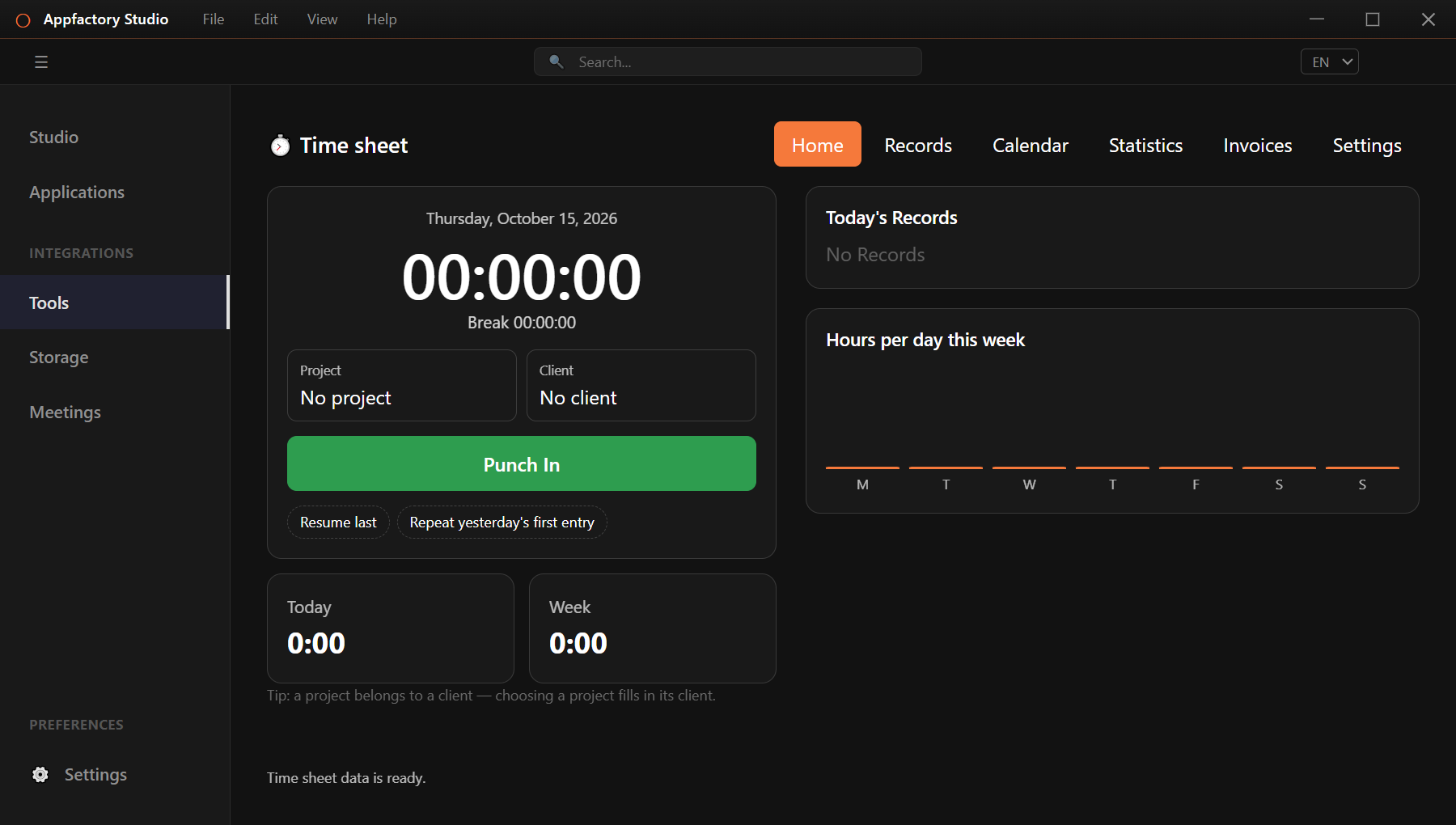
- Optionally pick a Project (choosing a project fills in its client).
- Press Punch In. The big clock starts counting.
- Press Pause when you take a break, and Resume to carry on.
- Press Punch Out to finish. The entry is saved.
Shortcuts under the button save time: Resume last carries on your last entry, and Repeat yesterday's first entry starts the same work as yesterday. The tiles show today's and this week's total, and the chart shows hours per day.
If you step away
If you leave your computer while the timer runs, the app asks when you return what to do with the time away. You can keep it, drop it, count it as a break, or save it as a separate "Away" entry. It never counts that time silently. Reminders can also warn you if you forgot to punch out.
Records
See every entry in a list. You can:
- pick the period, search, filter and sort,
- group by day, project, client or tag,
- edit an entry: change times, project, tags, rate, notes, and add expenses or mileage,
- split, merge, duplicate or delete entries, and
- undo your last changes.
Deleted entries can be restored for a while.
Calendar
See your time on Month, Week and Day views. In the week and day views, click and drag to create an entry, drag it to move it, or pull its edge to resize it. The month view shows each day's total and the week number.
Statistics
A dashboard shows your hours, earnings and progress toward a weekly target, with bar, line and donut charts you can group by project, client, tag and more. Click a bar or slice to see the entries behind it. You can copy a chart, save it as a picture, or export its data.
Invoices
- Press + and choose a client. The app lists their unbilled time.
- Select the entries to bill, and add discount, tax or a deposit if needed.
- Check the preview, then save a draft or issue the invoice. Issuing locks it.
From an invoice you can Mark paid (record payments with a date and method), Save PDF…, Print…, Email…, Duplicate, create a Credit note, Void or Archive it. Lists are split into Unpaid, Paid, All and Archived.
Reports
Press the reports button on the Invoices tab to build a report for any period, grouped by client or another field. Export it as CSV or PDF, print it, or copy it into a spreadsheet.
Settings
Under Settings you set up how the Time Sheet works:
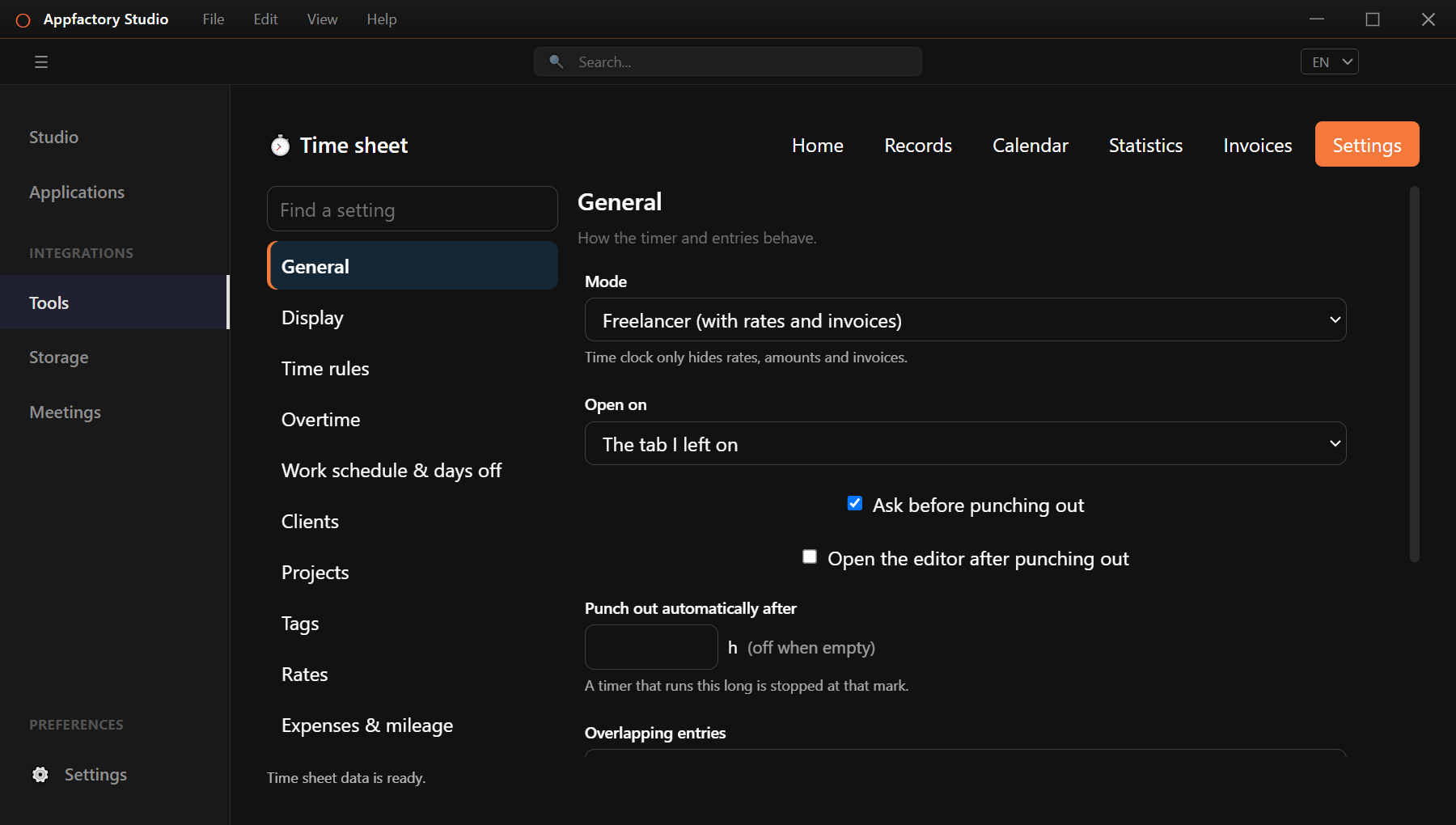
- General: choose Freelancer mode (rates and invoices) or Time clock (hours only), what opens first, and when to punch out automatically.
- Display: date, time and duration formats.
- Time rules: round time up or down for billing. The time you record stays exact.
- Overtime, Work schedule & days off.
- Clients, Projects, Tags, Rates, Expenses & mileage and your business details for invoices.
Work from the system tray
Under Settings you can switch on extras for the desktop app, each one off until you turn it on:
- a tray icon to punch in, pause and punch out,
- a small always-on-top timer window,
- a keyboard shortcut that works from any app,
- launch at login, and
- taskbar or Dock shortcuts for punching in and out.