Calendar
Plan events and tasks on a calendar that lives on your computer. Open it from Tools → Calendar. No sign-in is needed, and syncing and sharing are optional.
Switch the view
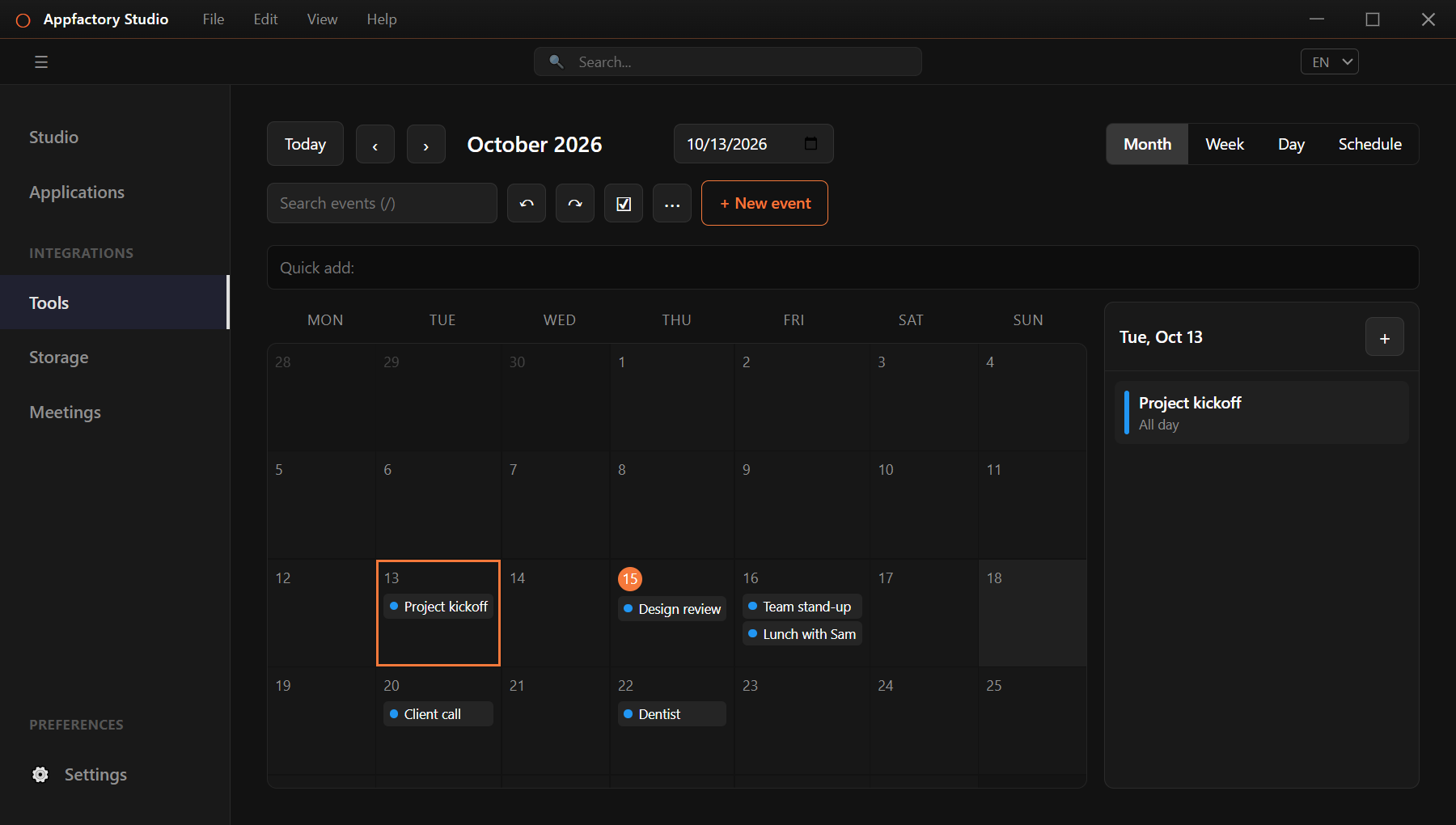
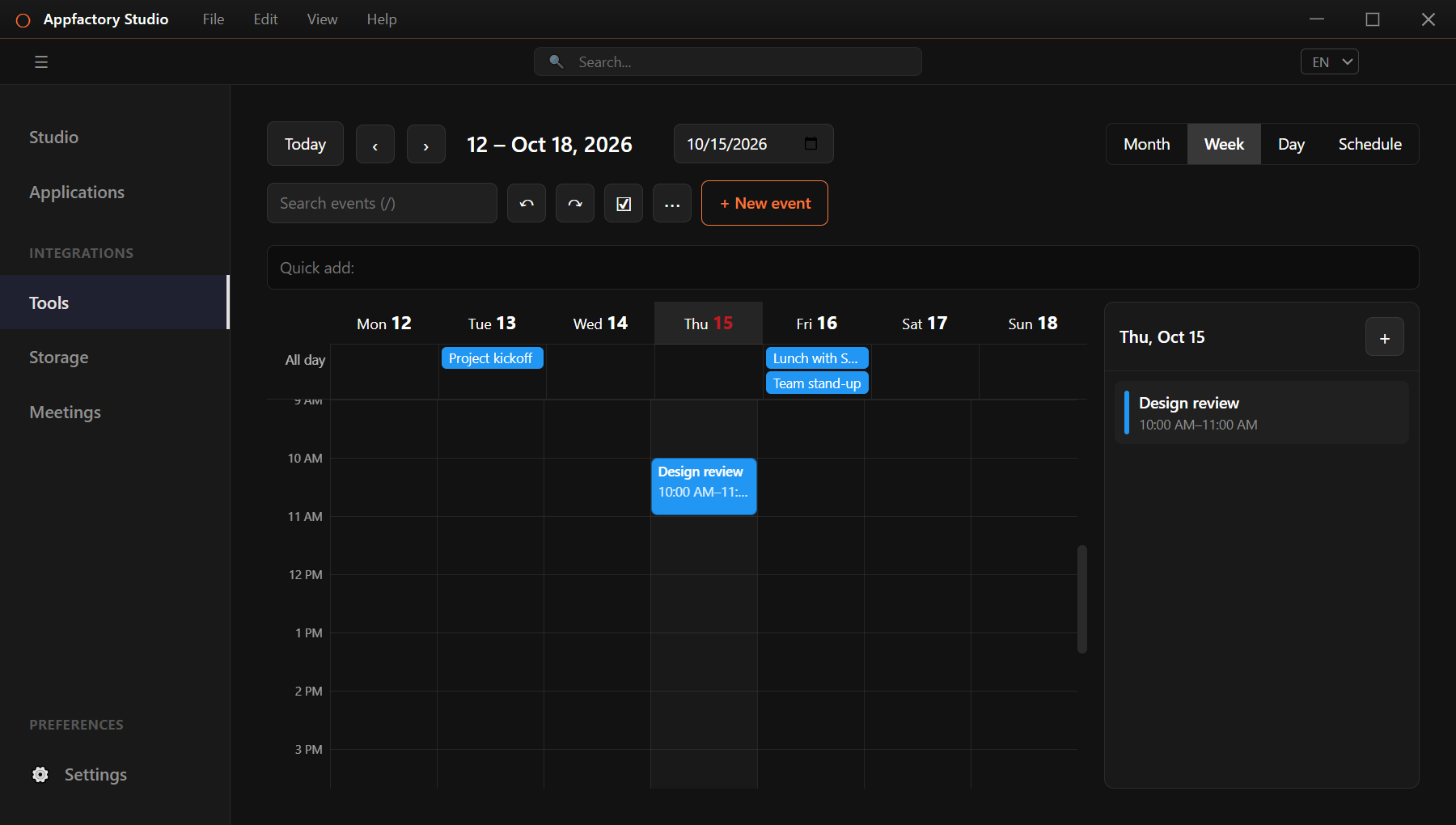
Use Month, Week, Day or Schedule at the top right. Today jumps back to the current date, the arrows move forward and back, and the date box takes you to any day. Click a day to see its events in the panel on the right.
Add an event
- Type into Quick add and press Enter, for example
Lunch with Sam tomorrow 12:30. If the date or length is unclear, the app asks you to confirm it. - Or press + New event to fill in the details yourself.
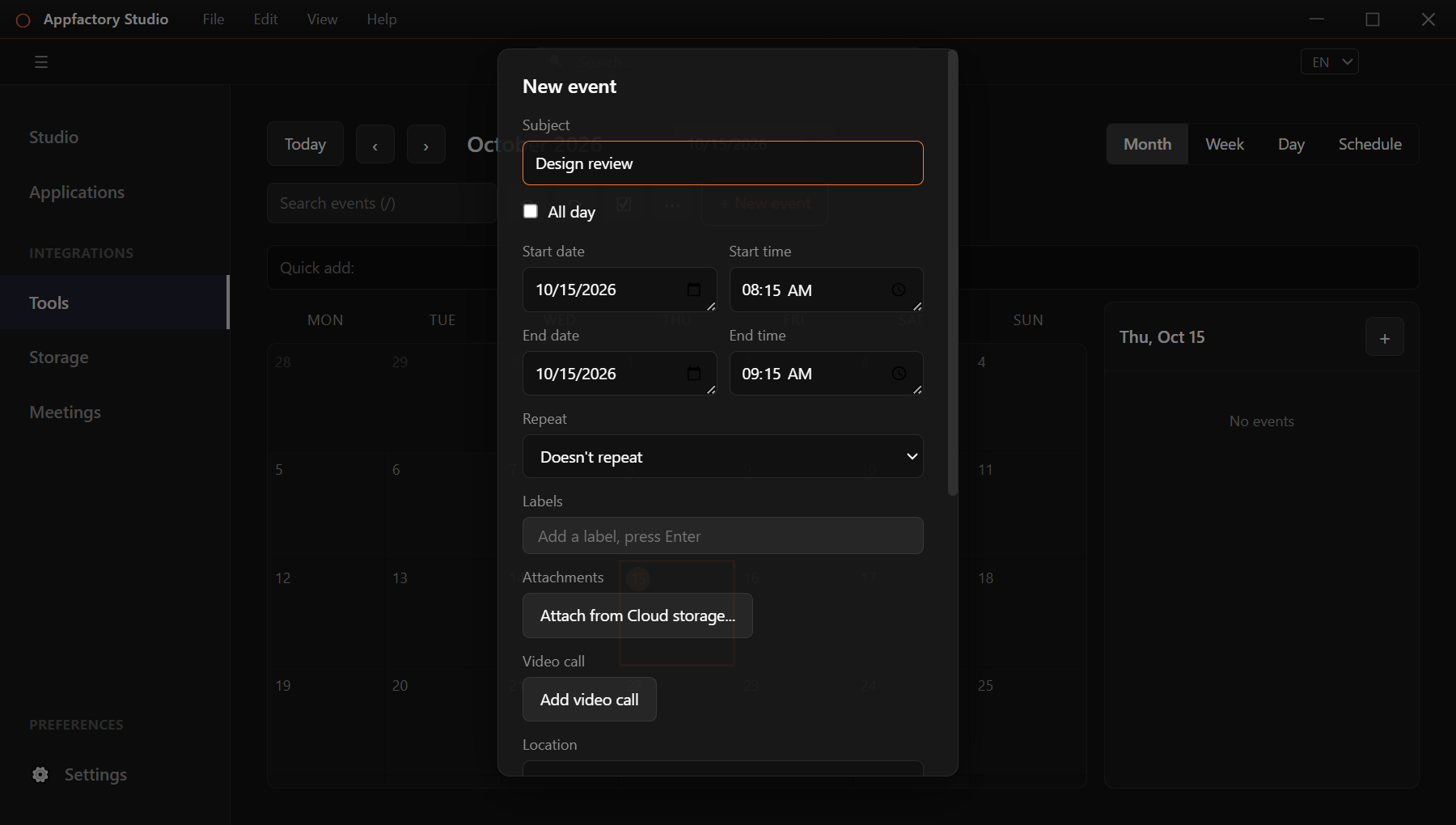
An event can have:
- a title, date and times, or be All day,
- a repeat: daily, weekly, monthly or yearly, with an end date or count,
- reminders before it starts,
- labels, a location and notes,
- a file attached from your cloud storage, and
- a video call link.
Click an event to change it. For repeating events you choose whether to change just this one or the whole series. Undo and redo are at the top.
Search
Type in Search events (or press /) to find an event.
Tasks
Press the ☑ button to open your tasks. Tasks have a due date and priority, and are grouped as Overdue, Today, Upcoming and No date. Tick a task when it is done.
Several calendars
Press the ⋯ button to manage calendars. You can:
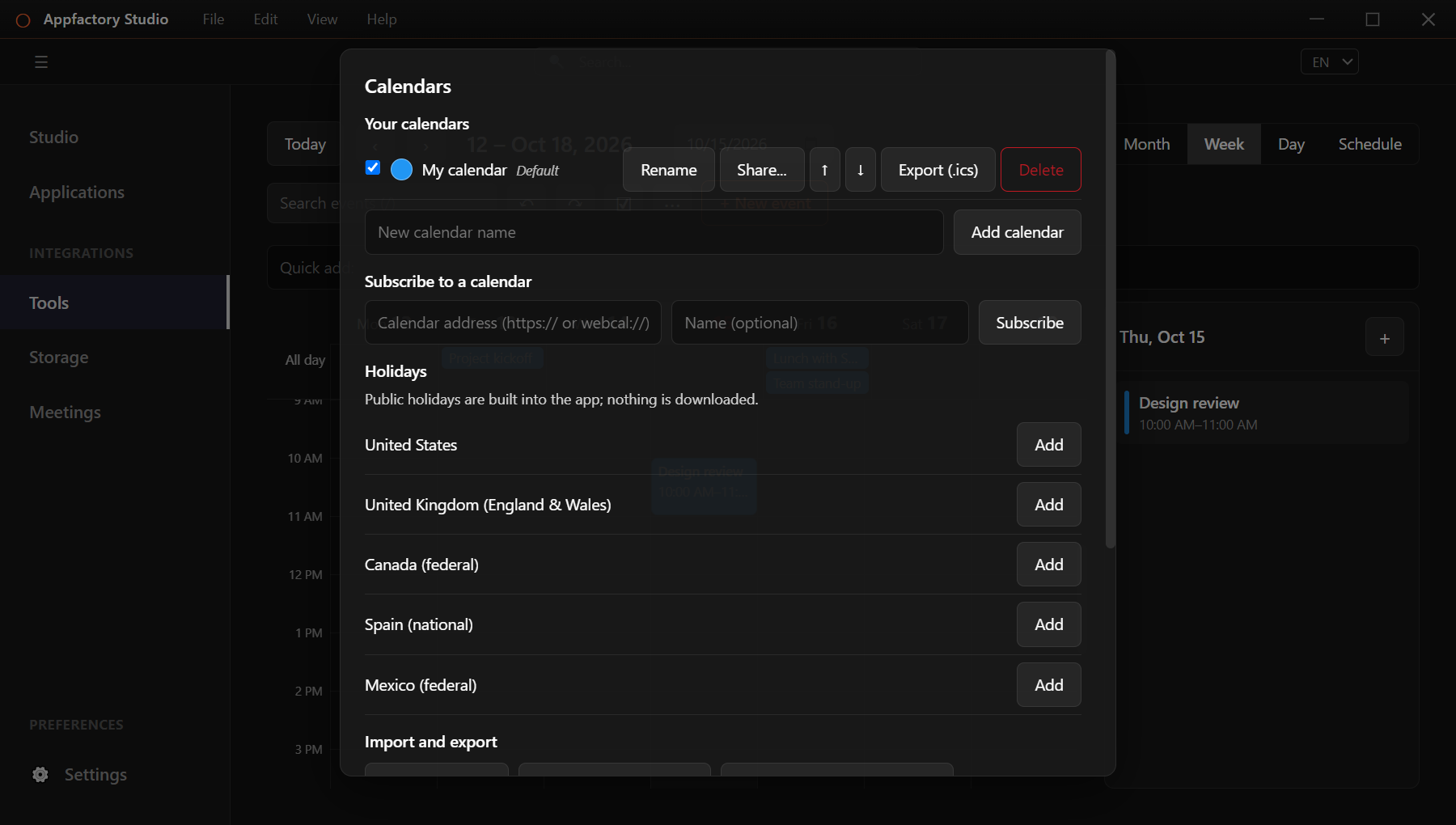
- add, rename, reorder and colour calendars, and show or hide each one,
- add public holidays for your country,
- subscribe to a calendar from a web address, and
- import an
.icsfile (you can also drop one onto the calendar) or export your events as.ics.
Share a calendar
Choose Share… next to a calendar and invite people by the email address on their account. They can be set to Can view or Can edit. Nothing is shared until they accept, and you can stop sharing at any time. You can also invite people to a single event. They answer Yes, No or Maybe, and only you see the answers.
Sync across devices
Calendar sync keeps your calendars and events in step with your phone. It is off until you turn it on after signing in, and you can remove your data from the server at any time.