Getting Started
Find your way around
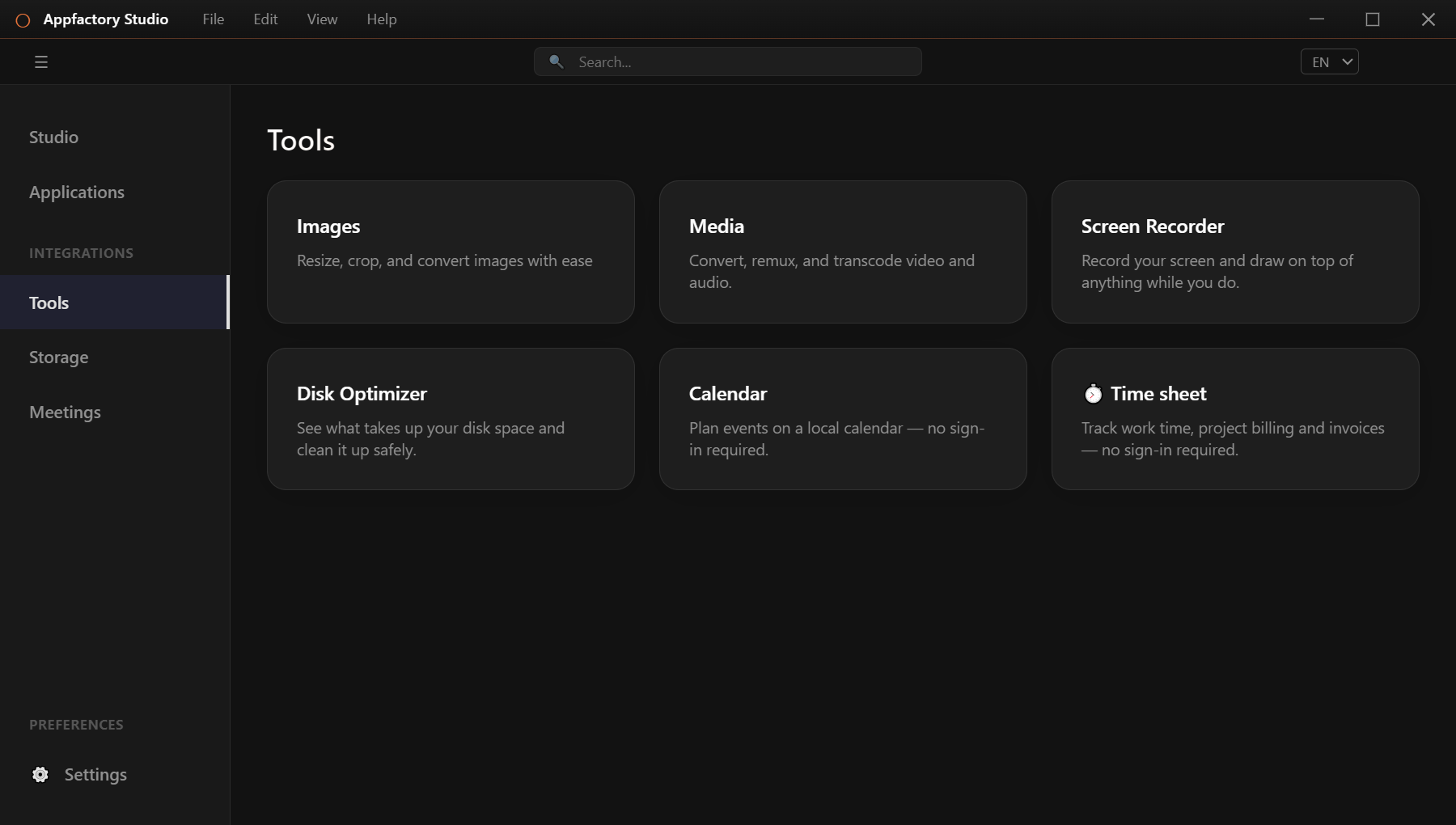
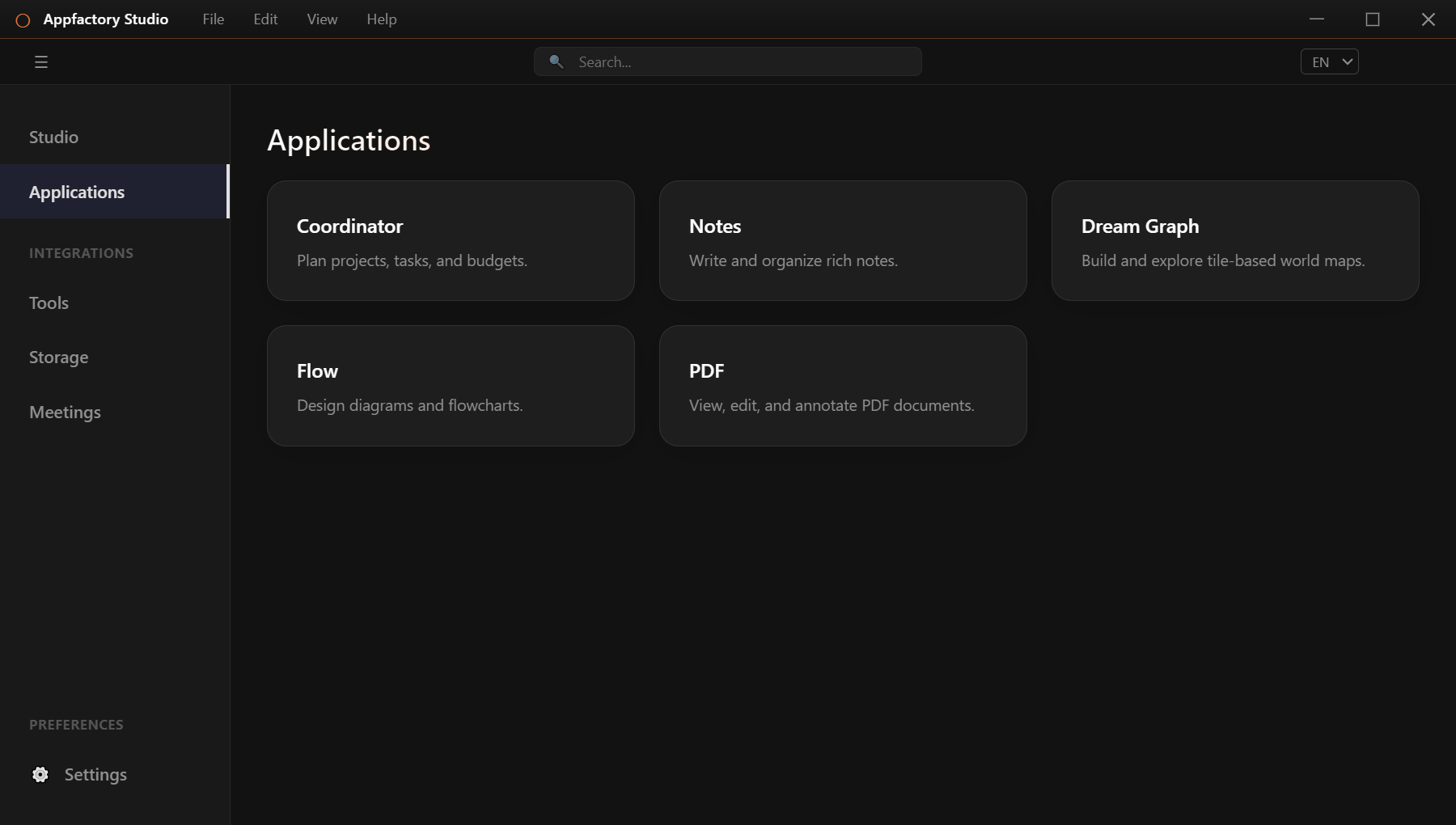
The menu on the left is always there.
- Studio is the home screen.
- Applications opens the larger apps, such as the PDF Editor and Notes.
- Tools opens the everyday tools: Images, Media, Disk Optimizer, Calendar and Time Sheet.
- Settings holds your account, language, update options and app information.
Use the ☰ button at the top to collapse the menu, and the Search box to jump to what you need.
Change the language
Choose a language from the EN menu at the top right. English, Spanish, German and Chinese are available.
Do I need to sign in?
No. The tools work without an account. Signing in is only needed for optional extras such as syncing your notes and calendar between devices. You sign in under Settings → Account. If your account uses two-step verification, you are asked for the code from your authenticator app.
Where your files are saved
Results are saved in your Documents → afsfiles folder, in a sub-folder for each tool. Your original files are never changed. Every tool writes a new copy instead.
Keep the app up to date
The app can check for new versions for you. See Updates.