Audio & Video
Convert, trim, repair and package video and audio files. Open it from Tools → Media. Your original file is never changed. Results are saved as a new file.
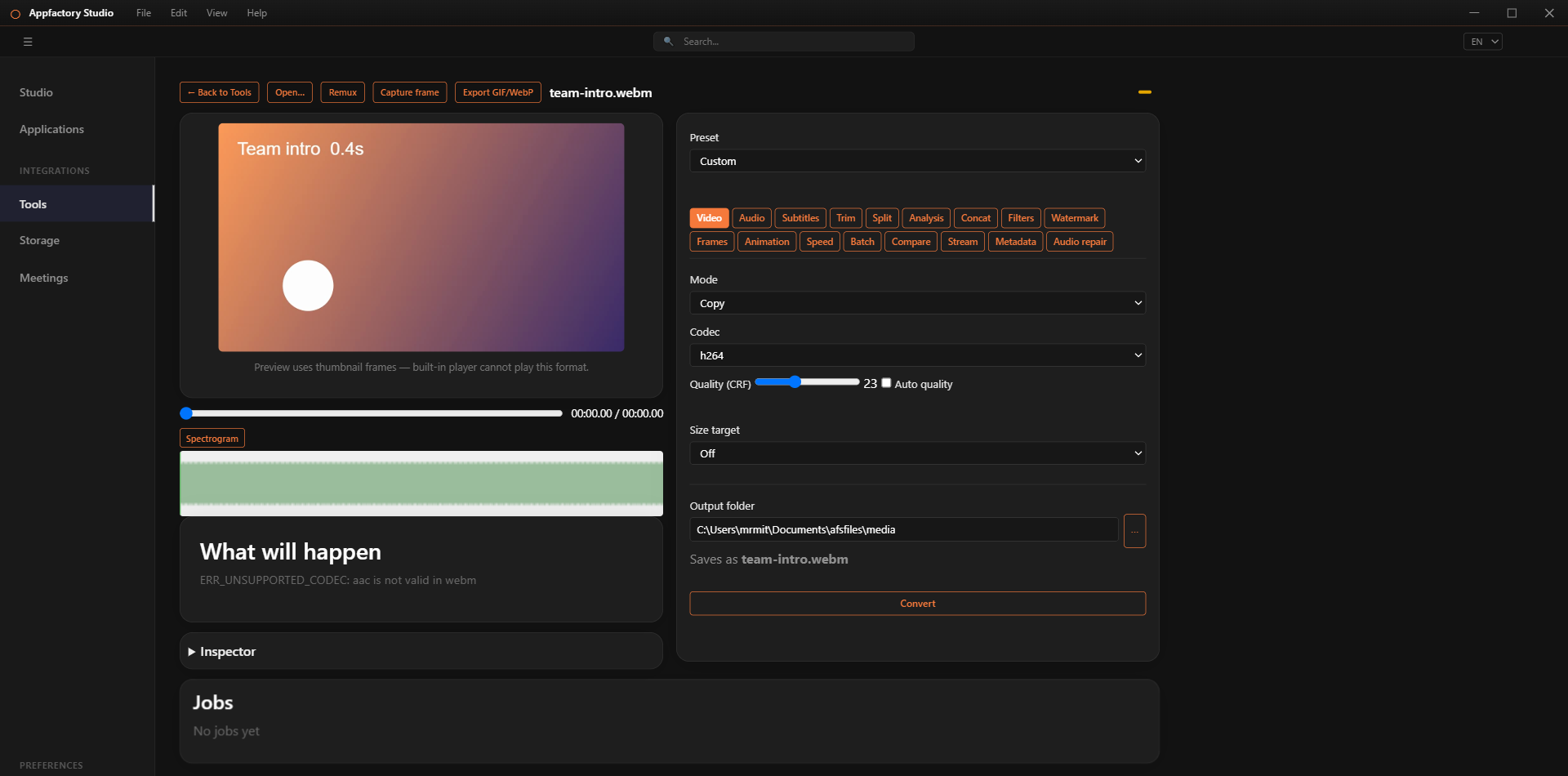
Convert a file
- Choose Open… and pick a video or audio file.
- Pick a Preset, or leave it on Custom.
- On the Video tab, choose the Mode:
- Copy moves the content into a new container almost instantly, without losing quality.
- Encode re-compresses the file with the codec and quality you choose.
- Drop removes the video, and Extract audio only keeps just the sound.
- Choose the output folder and press Convert.
The What will happen box explains the result before you start. You can set a quality level, or a target file size and let the app choose the settings.
Remux switches a file to another container (for example MKV to MP4) without re-compressing it.
Edit tabs
| Tab | What you can do |
|---|---|
| Video | Codec, quality and size target. |
| Audio | Codec, bitrate, channels, and loudness matching for platforms such as streaming sites. |
| Subtitles | Extract, embed, convert, retime or burn subtitles into the picture. |
| Trim | Set in and out points from the playhead. Choose an instant cut, or an exact cut that re-encodes. |
| Split | Cut a file into parts. |
| Concat | Join files in the order you choose. |
| Analysis | Find scene changes, silence, black frames and frozen frames. Markers show on the sound wave. |
| Filters | Crop, scale, rotate, flip, deinterlace, denoise and steady shaky footage. |
| Watermark | Overlay a logo or text. |
| Frames | Save a single frame, an automatic poster, frames at intervals, a contact sheet, or a storyboard. |
| Animation | Export a clip as animated WebP or GIF, with presets for chat, README demos and screen recordings. |
| Speed | Slow motion, fast motion and time-lapse, with smooth slow motion. |
| Batch | Apply one preset to every file in a folder. |
| Compare | Measure quality against the original with VMAF, SSIM and PSNR scores. |
| Stream | Prepare HLS and DASH streaming files with a test player. |
| Metadata | Edit tags, chapters, cover art and stream names. |
| Audio repair | Clean up speech: remove noise and hum, even out volume, adjust tone, and handle silences. |
Subtitles from speech
On the Subtitles tab you can Generate subtitles from the speech in your video. This runs on your computer, so your audio never leaves your machine. Review the result and save it as an SRT file.
Waveform and spectrogram
Below the preview, the sound wave shows the track. Press Spectrogram to switch to a view of its frequencies.
Tips
- Use Copy whenever you only need a different file type. It is the fastest and loses nothing.
- If the preview shows a still image, the built-in player cannot play that format. Conversion still works.
- Jobs run in the background, and an app update waits until they finish.