PDF Editor
Keep your PDFs in a library and edit them. Open it from Applications → PDF. When you import a PDF, the app works on a copy, so the file you imported is never changed.
The library
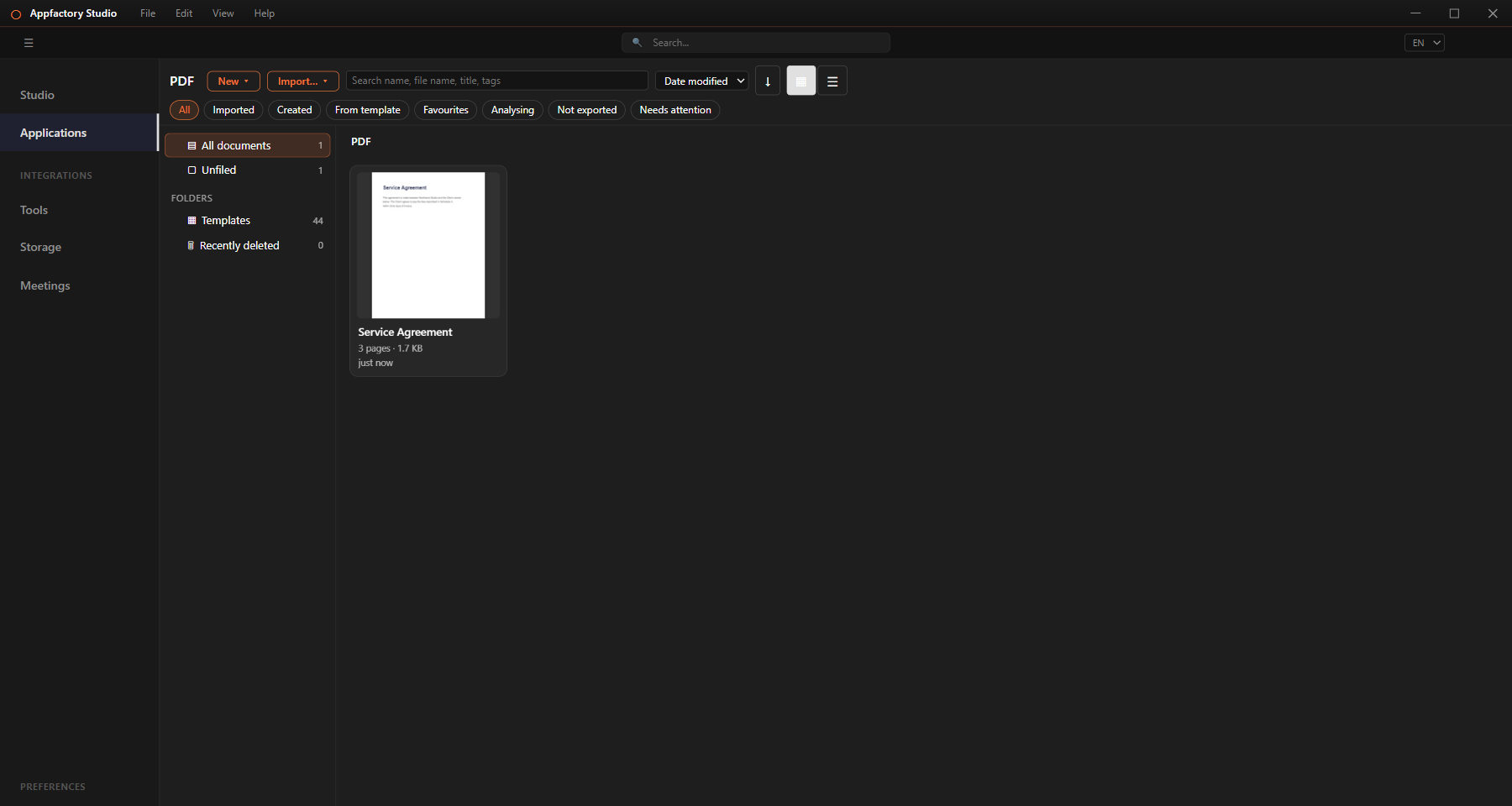
Every PDF you create, import or save appears in the library. From there you can:
- Search by name or tag, sort, and switch between grid and list.
- Filter with the buttons at the top: Imported, Created, From template, Favourites, Not exported and more.
- Rename, duplicate, mark as a favourite and sort into folders.
- Delete. Deleted documents wait in Recently deleted and can be restored.
Create or import
- Import… (or drag PDFs into the window) adds files to the library. A progress bar shows while a large file opens, and you can cancel.
- New starts a blank PDF, a document from a template, or a PDF made from pictures.
Edit a document
Double-click a document to open it.
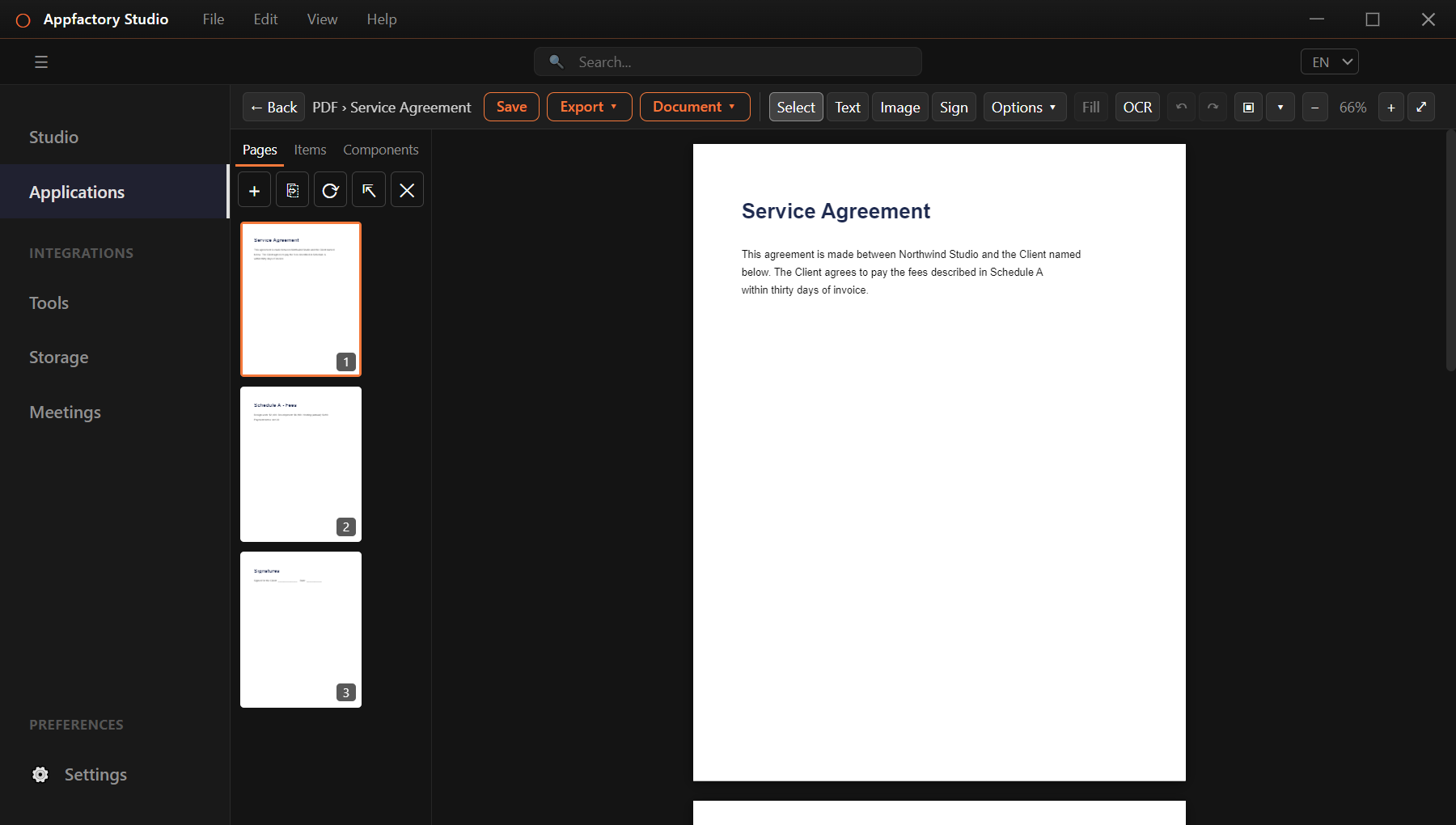
The toolbar has Select, Text, Image and Sign. Other tools such as pen, highlighter, lines, arrows, shapes and redact are under Options. The page strip on the left lists your pages.
- Edit text: select a line, retype it, move it or delete it. The font box shows the font in use, or the closest match.
- Pictures and shapes: select, move, resize, recolour, add and delete.
- Show what is editable: press Ctrl+Shift+H to outline everything you can change. The Items tab lists them.
- Undo and redo: the arrows on the toolbar.
- Zoom: use − and +, or the fit buttons.
- Save with Ctrl+S. Your work is kept in the library.
Fonts
About 40 MB of fonts come with the app, and more can be downloaded from More fonts…. Documents look the same on every computer.
Text in pictures (OCR)
Select OCR to read the text in a picture, or in every picture on the page, and turn it into editable text. You can undo it.
Signatures
Choose Sign to draw your signature, type it in a handwriting font, or use one you saved. This is a visual signature, not a digital one.
Fill in forms and templates
Fillable form fields can be typed into directly. For templates, press Fill to be walked through each blank in turn.
Document tools
Open the Document menu for:
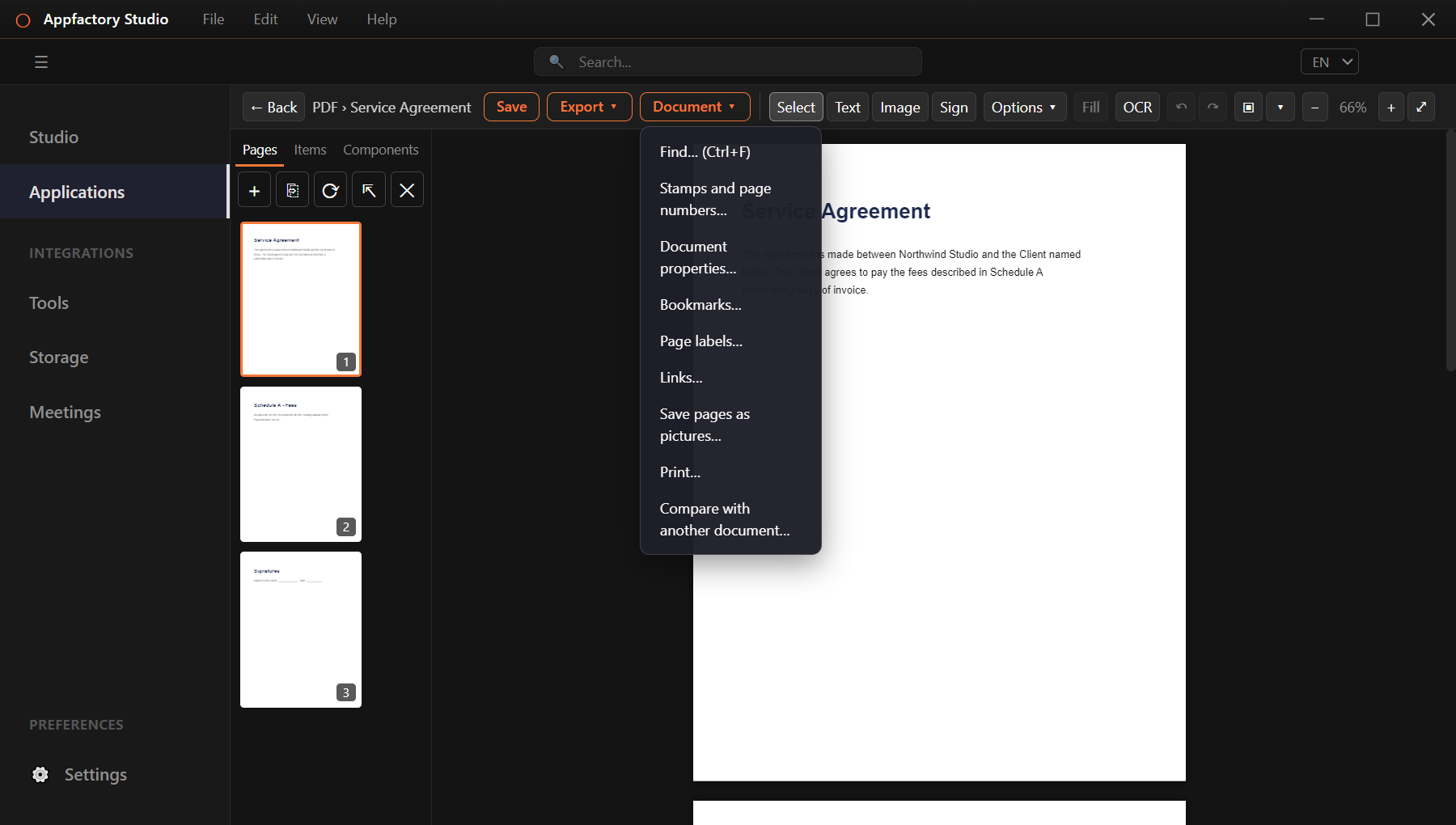
- Find across the whole document.
- Stamps and page numbers: watermark, page numbers, headers and footers.
- Document properties, Bookmarks, Page labels and Links.
- Save pages as pictures (PNG or JPEG, in one zip file).
- Print.
- Compare with another document: see what changed between two versions.
Redact
Options → Shapes → Redact places a black box. When you export, whatever is under the box is truly removed from the file, not just covered. The app then checks the new file and refuses to save it if any of the hidden content is still there.
Manage pages
In the page strip, click a page (hold Ctrl or Shift for several), then use the buttons above it or right-click to:
- add a blank page or insert pages from another document,
- move pages, or drag them into place,
- turn, duplicate, crop or resize pages,
- delete pages, or extract them into a new document.
Every change can be undone.
Combine and split documents
In the library, select documents and choose:
- Merge: join documents in the order you choose, with optional page ranges.
- Split: by every N pages, by page ranges, at blank pages or at bookmarks.
- Extract pages: make a new document from the pages you pick.
- From pictures: one picture per page.
The originals stay as they are.
Templates
Choose New → From template… to start from a ready-made page such as a letter, invoice, proposal, resume, flyer or certificate.
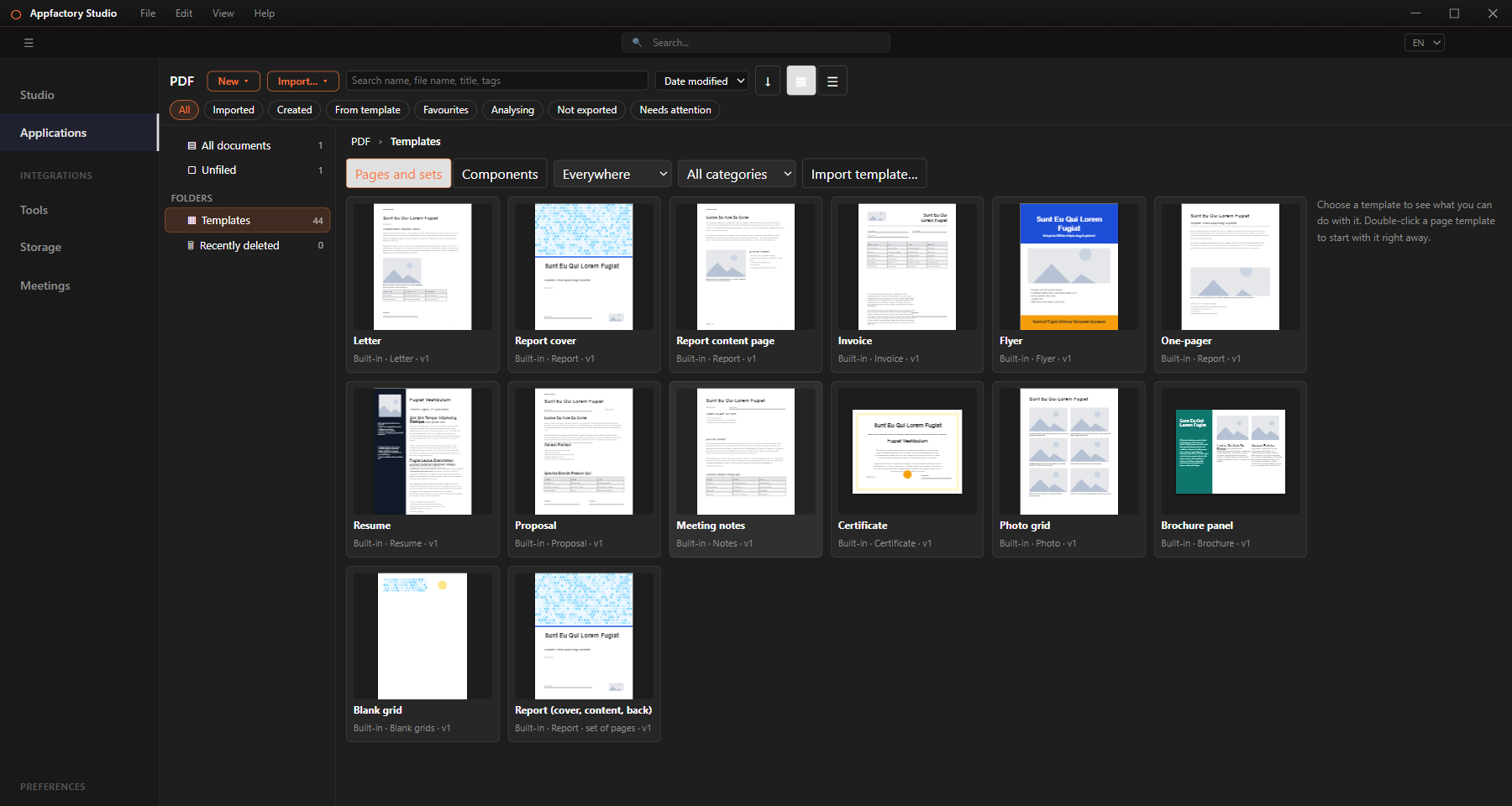
Pick a page (or a set of pages), choose the paper size and open it. The Components tab adds building blocks to any page. You can save your own templates under My templates, share them as files, and fill a page from a spreadsheet-style CSV or JSON file.
Export
Choose Export to save a PDF, a range of pages, or the app's own format to any folder.
- A document you did not edit exports as the exact original file.
- Pages you did not touch are copied unchanged.
- Options include making the file smaller, flattening forms, removing links or comments, and protecting it with a password.
Good to know
- Editing a signed document makes its signature invalid. You are warned before you export.
- Text inside a picture can be edited only after you run OCR.
- Links, bookmarks and form fields already in a file are kept, but are not edited individually.
Settings
Open Settings → Options → PDF to change the library folder, how long deleted documents are kept, the number of undo steps, the export defaults and downloaded fonts.