Notes
Write and organise notes. Open it from Applications → Notes. Notes work fully on your computer, with no sign-in. Syncing with your other devices is optional.
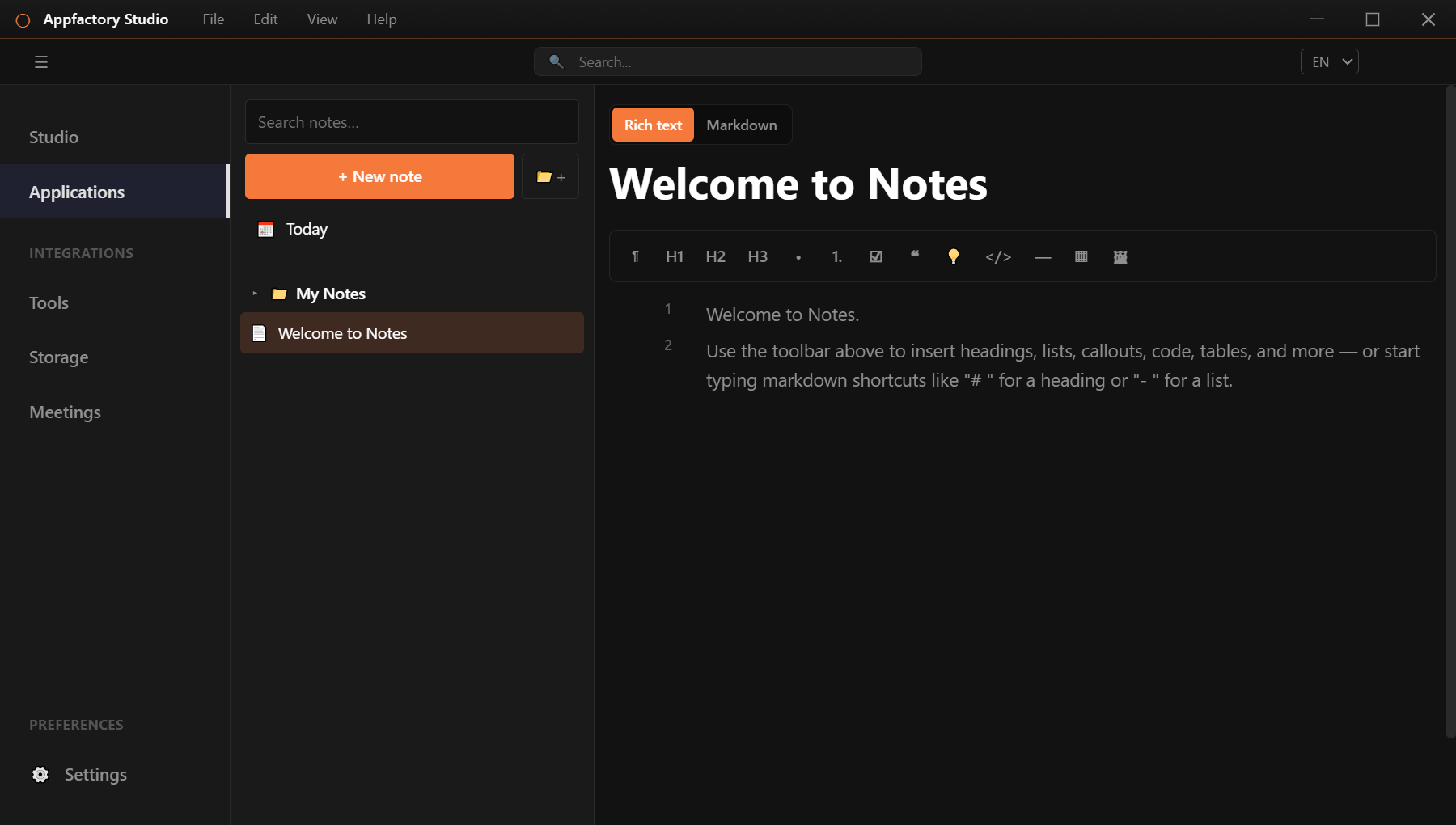
Write a note
- Press + New note.
- Type a title and start writing.
Use the toolbar above the note to add headings, bullet and numbered lists, to-do lists, quotes, callouts, code blocks, dividers, tables and pictures. You can also type Markdown shortcuts, such as # and a space for a heading, or - and a space for a list.
Rich text or Markdown
Switch between Rich text and Markdown at the top of a note. Both show the same note. If switching might lose some formatting, the app tells you.
Organise
- Folders: press the folder button to make one, and drag notes into it.
- Today: opens a note for today's date.
- Favourites: star the notes you use most.
- Search: type in the search box above the list.
- Trash: deleted notes wait here until you empty it.
Sync across devices
Notes sync stores your notes on our server, tied to your account, so your phone and computer stay in step. It is off until you turn it on.
- Sign in under Settings → Account.
- Press the notes sync button and choose Turn on notes sync.
The sync panel also lets you:
- see when your notes last synced and press Sync now,
- see and remove the devices linked to your account,
- review edits that were made on two devices at once. The newer one is kept, and you can Restore as new note to bring the other version back,
- Export a backup, and
- Remove from server to delete your synced notes. The notes on this computer stay as they are.
If you are offline, your notes stay safe on your computer and sync when you are back online.