Disk Optimizer
See what is using the space on a drive or in a folder, find things that are safe to remove, and clean them up after you review them. Open it from Tools → Disk Optimizer.
Your files stay safe
- A scan reads only names, sizes and dates. File contents are read only if you run the duplicate search.
- Nothing is sent over the network.
- Nothing is deleted on its own. You review every clean-up first.
- Removed items go to the Trash or Recycle Bin, so you can get them back.
Scan a drive or folder
- On the Scan tab, choose a drive or folder, or press Browse….
- Press Scan.
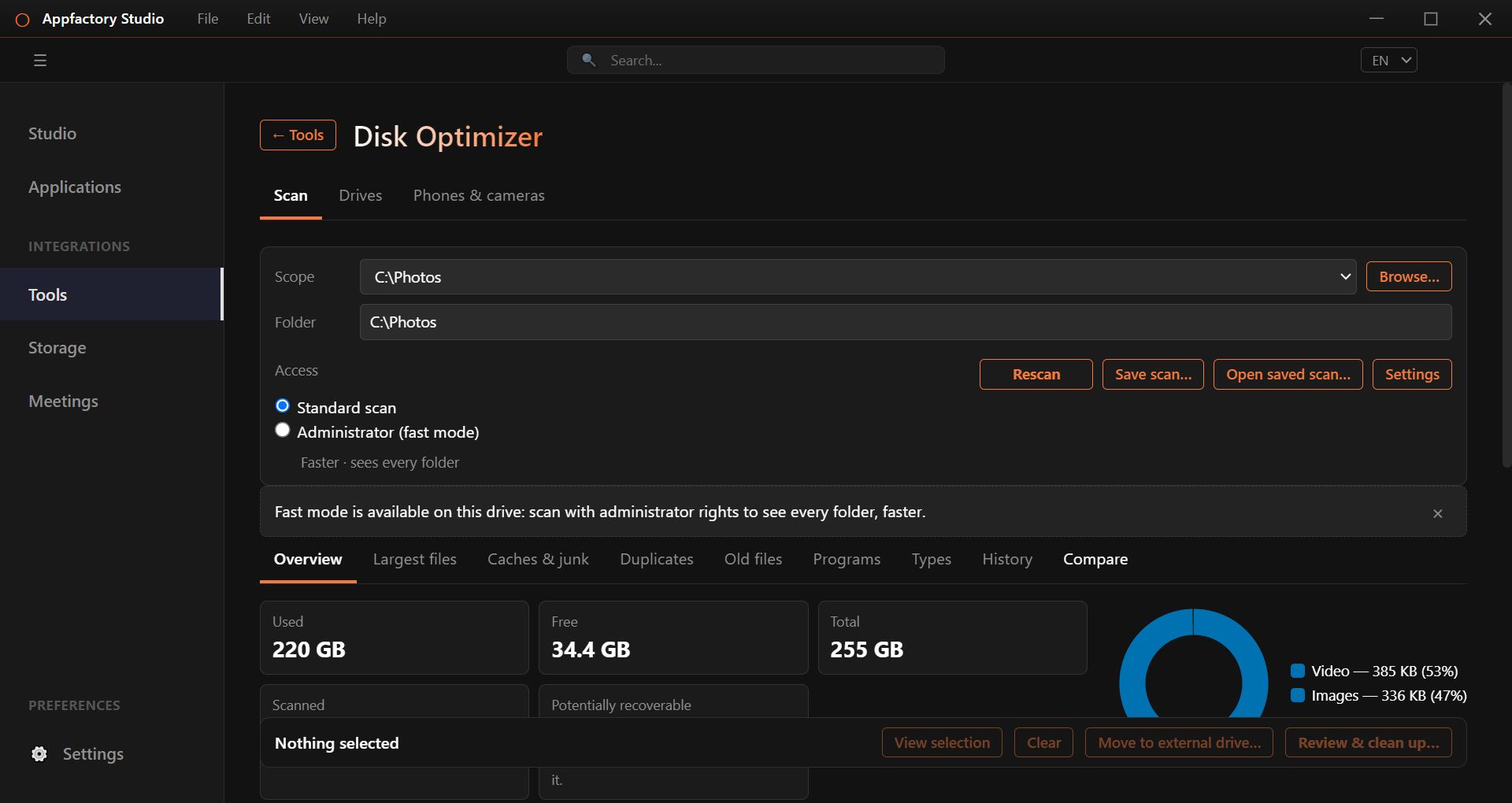
The Overview shows used and free space, how much could be recovered, and a chart of space by file type.
Administrator (fast mode) sees every folder and is faster on Windows drives. You will be asked to approve it. If you decline, the app does a standard scan.
Find what to clean
Use the tabs below the scan bar:
| Tab | What it shows |
|---|---|
| Overview | Space used, free and recoverable. |
| Largest files | The biggest files, with filters for type, size and age. |
| Caches & junk | Temporary files and caches that apps rebuild by themselves. |
| Duplicates | Exact copies of files, found by comparing their content. |
| Old files | Files you have not changed for a long time. |
| Programs | Installed programs by size, with when you last used them. |
| Types | Space by file type. |
| History | A record of your past clean-ups, kept only on this computer. |
| Compare | What grew or shrank since an earlier saved scan. |
Items are marked by risk:
- Safe to remove: the app or system rebuilds it. You may need to close the owning app first.
- Review first: fine to remove, but you may want it, such as old downloads or duplicates.
- Protected: system files, programs and your own documents. They are shown but never offered for removal.
Clean up
- Tick the items you want. The bar at the bottom keeps count.
- Press Review & clean up….
- Check the list. Anything permanent is clearly marked. Use Don't remove this to take items out.
- Confirm. For a very large clean-up you are asked to type the number of items.
Use Save scan… to keep a scan and Open saved scan… to look at it later.
Move files to an external drive
Tick files, then press Move to external drive…. The files are copied, read back and checked. They are removed from your computer only after every copy is verified.
Drives
On the Drives tab you see connected external drives and can:
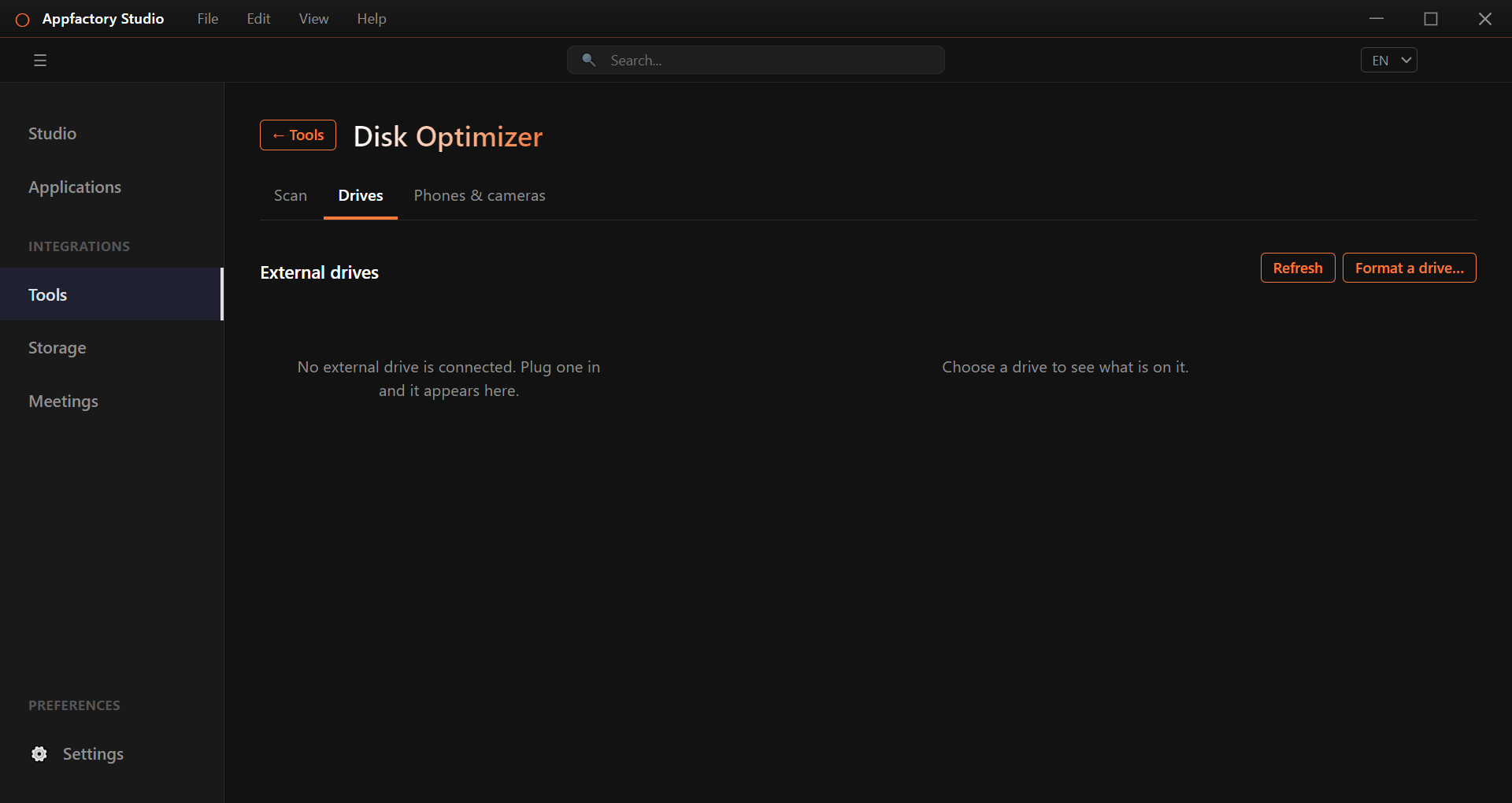
- browse a drive, create folders, rename and delete,
- copy files to and from your computer, with a choice of verification,
- check the drive's health,
- eject it safely, and
- Format a drive… step by step. Only external drives are offered, and you confirm several times before anything is erased.
Phones & cameras
Connect a phone or camera with a cable, unlock it and choose File transfer if asked. It appears on the Phones & cameras tab, where you can browse it and copy photos and files off it. The tab tells you what to do if the device is locked, charging only, or waiting for permission.
Seeing every folder
A standard scan skips folders your account cannot open, and the results tell you how much space is in them.
- Windows: choose Administrator (fast mode) and accept the prompt.
- macOS: open System Settings → Privacy & Security → Full Disk Access, turn on Appfactory Studio, then restart the app.
- Linux: choose administrator scan and sign in when asked.
Settings
Press Settings on the Scan tab to include hidden files, set the smallest file to list, choose when a file counts as old, show sizes in GiB, and set how long history is kept.