Particle Effects
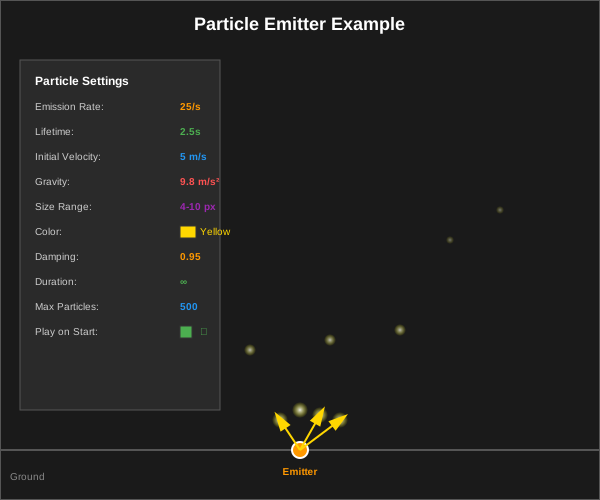
Explosions, fire, smoke, dust, sparks, magic — anything made of lots of small moving pieces. Instead of hand-animating them, you describe the rules once and the engine spawns, moves, fades and retires the pieces for you.
The two halves
A particle effect is split into two things, and it helps to know which is which:
| What it is | Where you edit it | |
|---|---|---|
| The effect | A .jparticle asset — how the effect looks and behaves | The Particle Editor panel |
| The emitter | A Particle Emitter component on an entity, pointing at a .jparticle | The Properties panel |
Author one explosion, point forty entities at it, and change all forty by editing one file. This is the same relationship a tileset has to a tilemap.
Making your first effect
1. Open the Particle Editor (Windows → Panels → 2D → Particle Editor). Its toolbar has New, Save, Save As… and Revert. Press New to start an untitled effect, tweak it while watching the live preview, then Save As… into your Assets folder.
2. Add an emitter to your scene. Select an entity, then Add Component → General → Particle Emitter.
3. Point it at the effect. In the Properties panel, assign the .jparticle you just saved. The Edit Particle System button there reopens it in the Particle Editor at any time; so does double-clicking the file in the Content Browser.
Emitters preview in the viewport while you're building a level, not just in Play mode — there's a per-emitter toggle in Properties if you'd rather one stayed still.
The preview draws flat colours
The Particle Editor's preview runs the real simulation — the numbers are exactly what you'll get at runtime — but it draws untextured quads. A textured or sprite-sheet effect looks flat in that panel and correct everywhere else. Check the Scene viewport when you want to see the finished look.
What you can set
The Particle Editor groups everything into sections. You rarely touch all of them.
General
| Setting | What it does |
|---|---|
| Duration | Length of one cycle, in seconds |
| Looping | Start the cycle again when it ends |
| Prewarm | Start as if a full cycle had already run — a fire that's already burning when the scene opens. Looping effects only |
| Max Particles | A hard ceiling. Spawn requests past it are dropped, not queued |
| Seed | Leave at 0 for a different result every time; set it for an effect that plays identically on every run |
Emission
Rate Over Time is the steady drip — particles per second. Bursts are the opposite: a count released all at once at a given time, optionally repeating (Cycles and Interval). A campfire is pure rate; an explosion is one burst and no rate at all.
Shape
Where particles are born and which way they set off: a Type (the emission shape), a Radius and Angle to size it, Emit From to choose the shape's edge or its whole volume, and Randomize Direction to loosen the direction the shape implies.
Start Values
The values each particle is born with. Each is a range — give a minimum and a maximum and every particle picks its own value in between, which is what stops an effect looking mechanical.
Lifetime, Speed, Size, Rotation, Angular Velocity.
Over Lifetime
How a particle changes as it ages: colour and transparency along a gradient, and size and speed along a curve. This is where an explosion goes yellow → orange → transparent, and where smoke swells as it rises.
Physics
| Setting | What it does |
|---|---|
| Simulation Space | World (the default) leaves particles behind as the emitter moves — smoke, exhaust, footstep dust. Local drags them along with it — a torch flame carried by a walking player |
| Gravity Modifier | How strongly gravity pulls on particles. Negative values make them rise |
| Drag | Air resistance. High drag is what makes smoke settle instead of shooting off |
| Inherit Velocity | How much of the emitter's own motion each particle is born with |
Simulation Space is the setting people miss
If your smoke trail rigidly follows your ship instead of being left behind, you're on Local and you want World. If your torch flame detaches and floats where the player used to be, it's the other way round.
Render
Texture (leave empty for flat colour), Blend Mode — additive is what makes fire and magic glow — Sort Order for drawing in front of or behind other 2D content, and a sprite-sheet option with Columns and Rows if your particle is itself animated.
Three effects to start from
Explosion — one burst of 30, no rate over time. Short lifetime (0.5–1 s), high speed, additive blending, colour going bright yellow → orange → transparent, size shrinking over lifetime.
Smoke — low rate (about 10/s), long lifetime (2–4 s), low upward speed, slight negative gravity so it rises, high drag so it slows, size growing over lifetime, colour white → grey → transparent.
Sparks — a burst, very short lifetime (0.2–0.5 s), high speed, strong positive gravity so they arc and fall, tiny size, additive.
Driving effects from C#
Get the emitter component off the entity and control it:
public class Torch : GameEntity
{
    private ParticleEmitter m_Flame;

    protected override void OnCreate()
    {
        m_Flame = GetComponent<ParticleEmitter>();
    }

    public void Extinguish()
    {
        m_Flame.Stop();          // stop emitting; particles already alive finish naturally
    }

    public void Relight()
    {
        m_Flame.Play();
    }
}| Member | What it does |
|---|---|
Play() | Start (or resume) emitting |
Pause() | Freeze the effect where it is |
Stop() | Stop emitting and let existing particles finish their lifetimes |
Stop(clear: true) | Cut everything instantly — for scene transitions |
Restart() | Back to the beginning of the cycle |
Emit(count) | Release particles right now, ignoring the emission rate — a hit spark, a footstep puff |
EmitDirected(count, direction, spreadDegrees) | The same one-shot, but aimed — a bullet hitting a wall at an angle |
IsPlaying | Whether it's currently emitting |
AliveCount | How many particles exist right now |
EmissionRate | Read and change the rate over time |
TintMultiplier | Tint the whole effect without editing the asset — the same explosion in red for one enemy and blue for another |
Effects with no entity
Most transient effects don't want a pre-placed entity. Particles.Spawn puts one wherever you ask and cleans it up when the effect finishes:
Particles.Spawn("Effects/Explosion.jparticle", Translation);There's an overload taking a rotation as well. It returns the spawned entity if you need it, or null if the effect couldn't be spawned.
Spawn refuses looping effects
Particles.Spawn destroys the entity it created once the effect finishes — so a looping asset, which never finishes, is refused outright rather than leaking an entity forever. Use a placed emitter for anything that loops.
Keeping them cheap
Particles are individually very cheap, and they still add up — five simultaneous explosions at 1000 particles each is 5000 of them.
- Set Max Particles honestly. It's a ceiling, not a target, and it's what stops a runaway effect from becoming an out-of-memory kill on a phone.
- Short lifetimes. Particles that die quickly never accumulate.
- Put particle textures in an atlas so they batch with the rest of your 2D content instead of forcing their own draw call.
- Measure on the device you're shipping to. See Performance for the profiler and the memory counters.
See also
- Materials and shaders — the blend modes particle rendering uses
- 2D Animation — keyframed animation, for effects that need to be authored frame by frame rather than simulated
- Performance — pooling, allocation discipline, and measuring on device