Input
Keyboard, mouse, gamepad and touch — read through named actions so one piece of gameplay code works on every device.
Actions, not keys
You can ask the engine "is the space bar down?" and sometimes that's the right question. For gameplay it usually isn't. Define an action called Jump, bind the space bar and the gamepad's South button and an on-screen button to it, and then ask about Jump:
if (m_Jump.WasPressedThisFrame)
    Jump();
That one line now works on a keyboard, a controller and a phone. Rebinding is a change to the binding, not to every script that reads it. Dead zones get applied once, in one place, instead of being copy-pasted into each script that reads a stick.
Where actions live
Actions are stored in .jinput files. Every new project ships with Assets/Gameplay.jinput, containing one map — Gameplay — with two actions to start from:
| Action | Type | Bound to |
|---|---|---|
Move | Axis2D | W/A/S/D, the left stick (with a dead zone), an on-screen stick |
Jump | Button | Space, gamepad South, an on-screen button |
Double-click the file (or open the Input Settings panel) to edit it. There you can add maps, add actions, and give each action as many bindings as you like. Actions come in three shapes:
- Button — pressed or not: jump, shoot, interact
- Axis1D — a single number, usually −1 to 1 or 0 to 1: a trigger, a throttle
- Axis2D — a direction: movement, aiming, menu navigation
An Axis2D action can be bound to a stick directly, or built out of four buttons with + Add Composite2D Binding — that's how W/A/S/D becomes a direction.
Processors and interactions
Each binding can carry processors that reshape its raw value — a dead zone on a stick is the common one, and it's already on the default Move binding. Hold and Tap interactions change when an action counts as pressed: hold-to-charge, tap-to-dodge.
Both are edited per-binding in Input Settings, so a designer can tune feel without touching code.
Reading actions from C#
Look the action up once in OnCreate and keep the handle. The lookup resolves a string on the native side every time you call it, so doing it per-frame is wasted work.
public class Player : GameEntity
{
    private InputAction m_Move;
    private InputAction m_Jump;

    protected override void OnCreate()
    {
        m_Move = Input.GetAction("Gameplay/Move");
        m_Jump = Input.GetAction("Gameplay/Jump");
    }

    protected override void OnUpdate(float ts)
    {
        Vector2 move = m_Move.ReadVector2();
        Translation += new Vector3(move.X, move.Y, 0.0f) * m_Speed * ts;

        if (m_Jump.WasPressedThisFrame)
            Jump();
    }
}
The name is "MapName/ActionName". A typo doesn't throw — you get a handle whose IsValid is false and whose reads are all neutral (false, 0, Vector2.Zero). If an action mysteriously does nothing, check IsValid first.
| Member | What it gives you |
|---|---|
IsPressed | True the whole time it's held |
WasPressedThisFrame | True for exactly one frame, on the press |
WasReleasedThisFrame | True for exactly one frame, on the release |
ReadFloat() | The value of an Axis1D action |
ReadVector2() | The value of an Axis2D action |
IsValid | Whether the name resolved to a real action |
Local multiplayer
Input.GetAction takes an optional player index, and the handle it returns is already bound to that player:
m_Move = Input.GetAction("Gameplay/Move", player: 1);Assign pads to players with Input.AssignGamepadToPlayer(slot, player). Every slot defaults to player 0, so a single-player game never calls it.
Reading devices directly
For a menu, a debug key, or a gesture an action map can't express, read the device:
Input.IsKeyDown(KeyCode.Escape);
Input.WasKeyPressedThisFrame(KeyCode.Space);
Input.WasKeyReleasedThisFrame(KeyCode.Space);
Input.IsAnyKeyDown();                       // "press any key to continue"

Input.IsMouseButtonDown(MouseCode.Button1);
Input.WasMouseButtonPressedThisFrame(MouseCode.Button0);
Vector2 mouse  = Input.GetMousePosition();  // window pixels, top-left origin
Vector2 delta  = Input.GetMouseDelta();
Vector2 scroll = Input.GetScrollDelta();    // desktop only; reads zero elsewhere

Input.IsPointerDown();                      // left mouse OR any touch
Mouse position is in the same coordinate space as CameraComponent.WorldToScreen, so a value from one can be handed straight to the other.
Gamepads
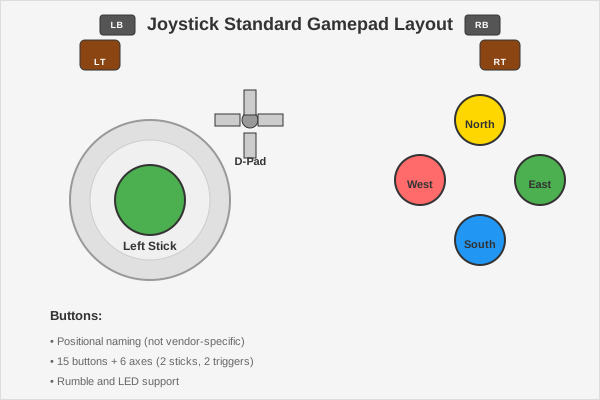
Bind gamepad controls in Input Settings and read them as actions like anything else. Button names are positional — South, East, West, North — rather than vendor labels, so the same binding is A on an Xbox pad and ✕ on a PlayStation pad without a per-brand table.
Rumble is called directly, on a gamepad slot (0–3):
Input.RumbleGamepad(slot: 0, lowFreq: 0.6f, highFreq: 0.3f, durationMs: 150);
Input.StopGamepadRumble(0);
Input.StopAllGamepadRumble();               // e.g. when opening a pause menu
A keyboard-only player and a pad with no motors both silently do nothing, so these are safe to call unconditionally. Rumble never fires outside Play mode.
For anything more shaped than a single buzz, author a .jhaptic curve and play it:
Input.PlayGamepadHaptic(0, "Haptics/Explosion.jhaptic");Give players a way to turn it down. Input.SetHapticIntensity(0..1) scales every rumble and haptic in the game, and 0 means genuinely nothing vibrates — a settings screen is the intended caller.
Input.SetHapticIntensity(Settings.GetFloat("haptics.intensity", 1.0f));Touch
Most touch input should go through actions — bind Touch/Stick0 or Touch/Button0 and your existing Move/Jump code works on a phone unchanged. When you need the fingers themselves (pinch, two-finger rotate, your own hit-testing), read the touchscreen:
public class Pincher : GameEntity
{
    private readonly Touch[] m_Touches = new Touch[10];

    protected override void OnUpdate(float ts)
    {
        int count = Touchscreen.GetTouches(m_Touches);
        for (int i = 0; i < count; i++)
        {
            Touch t = m_Touches[i];
            if (t.Phase == TouchPhase.Moved)
                Drag(t.Position, t.Delta);
        }
    }
}
Each Touch carries Id, Phase, Position, Delta, StartPosition, Pressure and StartTime. Phases are Began, Moved, Stationary, Ended and Cancelled — treat Cancelled separately from Ended; it means the system took the touch away (a call came in, a system gesture started), not that the player let go.
Keep the buffer in a field
Touchscreen.Touches returns a fresh array every call. That's fine in a menu and wrong in OnUpdate — use GetTouches(buffer) with a buffer you allocated once, as above. See Performance for why per-frame allocation matters on phones.
Touches reach the UI automatically — buttons and sliders work on a phone with no extra code.
On-screen controls
A phone with no controller needs buttons on the glass. Those live in a .jtouchcontrols layout, edited in the Touch Controls Layout panel: place a stick or a button, and bind it to an action by name. Nothing in your gameplay code changes — the on-screen stick feeds the same Move action the keyboard does.
Layouts are safe-area aware, so controls stay clear of a notch or a home indicator, and they hide themselves automatically when a real gamepad connects.
Checking what the engine sees
The Input Debugger panel shows live device state and which actions are firing. When a binding "doesn't work", this is where to look before touching code — it distinguishes "the engine never saw the button" from "the action fired and my script ignored it".
Input and the editor
While the editor has focus, input goes to the editor rather than to the game — so typing a name into the Scene Hierarchy doesn't also move your player. A suppressed frame reads as neutral (buttons up, positions zero), never as a stale value frozen mid-press. Press Play and input goes to the game; press Stop and it comes back.
See also
- Game UI — menus are navigated with the same action system
- Scenes — pausing, and input while the game is paused
- Saving and settings — storing haptics intensity and other input preferences